
OBSOLETE VERSION ... CLICK HERE for instructions for the newer hardware.
Only use these instructions if you have a PC board from the earlier version of the TactileAudio system.
Haptics: Adding Vibrators
In addition to the audio features discussed in earlier chapters, the TactileAudio system’s touch sensors can be programmed to control two different types of vibrators to provide tactile feedback when a sensor is touched.
Types of Vibrators
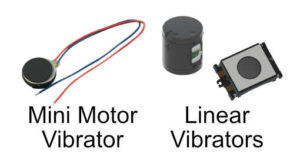
Motor Vibrators are small motors with an eccentric (out of balance) weight. When the motor spins, the out-of-balance weight causes the vibration. They are powered by a DC voltage.
Linear Vibrators are like a small speaker, but without the speaker cone. They have a magnet surrounded by an electromagnetic coil. When driven by an AC signal, the coil reacts to the magnet and vibrates. They’re also called “linear resonant actuators” (LRA) because have a resonant frequency (e.g. 150 Hz) where they operate best, and should be driven by an AC voltage at or near that frequency.
IMPORTANT: When you configure your system, it is very important to specify the correct vibrator type. If you use a motor vibrator but configure for a linear vibrator, it won’t work (it won’t vibrate). If you use a linear vibrator but configure for a motor vibrator, it could overheat the vibrator and potentially damage the electronics in your Teensy/TactileAudio hardware.
What is a “Vibration Envelope”?
A vibrator can do more than just vibrate at a fixed intensity. The TactileAudio system implements vibration “envelopes” that control the intensity over a period of time. For example:
 Continuous on/off vibration
 Continuous up/down intensity vibration
 A single pulse of vibration
For brevity, we call a vibration-intensity pattern an “envelope” — a time sequence of how strong the vibration will be.
There are several envelopes built in to the software (the ones illustrated above and more). In addition, the “Vibration Designer” (see below) allows you to create your own vibration envelope.
Adding the Vibrator ICs and Spring Terminals
The vibration signal from the Teensy microcontroller requires amplification (just like the audio signal requires amplification before you can hear it). The vibration amplifiers are two ICs (integrated circuits) that need to be soldered to the circuit board. We'll also solder two more spring-terminal blocks to the circuit board to which you'll connect the wires for your vibrators.
Connecting Vibrators
Connecting a vibrator to the TactileAudio system is fairly simple but requires a little soldering to attach wires or extend the existing wires of the vibrators.
Linear Vibrators: This video illustrates how to solder wires to a linear vibrator:
Motor Vibrators: This video illustrates how to lengthen the wires of a motor vibrator (they’re usually too short to use directly).
Finally, connect your vibrator to the Teensy. This video illustrates a linear vibrator, but the motor vibrator is identical.
Configuring Vibrators
When you vibrators are connected to your TactileAudio board, you can configure their behavior with the TactileAudio Configurator, which we looked at earlier in the chapter Your First Project. (Note: The tactile-configurator.htmo file is also delivered with the TactileAudio software package. Using that one ensures that the configurator matches the exact version of the software you installed.)
Be sure the correct channels are enabled in the top tabs, then scroll down to the “Haptics” section and click on the “switch” to enable vibrations.
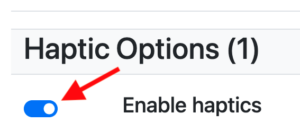
Important: Be SURE you configure the correct vibrator type (motor or linear) for each channel! Driving a motor-vibrator with a linear-vibrator signal is harmless but won’t work. But driving a linear vibrator with a motor-vibrator’s DC signal may damage the vibrator or the TactileAudio electronics.
The options available to control your vibrator’s intensity patterns (“envelopes” — see above) are explained in the configurator.
Designing Your Own Envelope
There are several built-in vibration envelopes in the TactileAudio system (the TactileAudio Configurator shows these options). In many applications, you might want to create your own envelope to suit the nature of your project.
The TactileAudio Configurator (which is in your software distribution) has a built-in "envelope editor" that lets you design your own vibration envelopes. This video illustrates the envelope editor: