OBSOLETE VERSION ... CLICK HERE for instructions for the newer hardware.
Only use these instructions if you have a PC board from the earlier version of the TactileAudio system.
Test and Troubleshoot Your System
Your system is ready to test!
Prepare a Test SD Card
To begin, we need to prepare an SD card with known, tested contents.
1. Download the test SD tracks ZIP file: CLICK HERE to download test SD Contents.
2. Double-click the ZIP file to unpack it into a folder, TactileAudio-sample-tracks
3. Insert your SD card into your computer, and open it.
4. If there is anything else on your SD card, delete it and empty your trash.
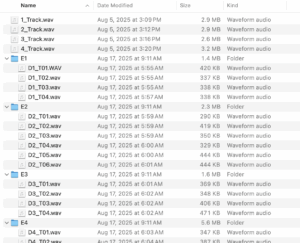
5. Copy the contents of TactileAudio-sample-tracks to your SD card. When you're done, it should look like this:
6. Eject the SD card from your computer.
Use this SD card for the rest of the tests. (When your TactileAudio device is tested and working properly, you'll use the chapter Prapare Audio Tracks to create your own sound files.)
Install and Prepare the Arduino App
If you have not done so yet, use the instruction in the chapter Install Arduino and TactileAudio Software.
Note: Each time you unplug the Teensy from the computer's UCB cable and plug it in again, you may have to re-select the port, as described in the install chapter.
Simple Test: Touch.ino
The Touch.ino sketch is a simple way to test that everything is working. It is a very basic sketch: when you touch a sensor, the audio for that channel plays, and when you release, it stops. (Don't edit the Touch.ino script; see the next chapter for instructions to create your own sketches.)
This test is only useful to verify that a system is complete and working. If the Touch.ino test does not produce sound, the rest of this chapter leads you through a sequence of steps to help identify and correct the problem.
Your TactileAudio device should be complete, with all Gemma-M0's connected per the instructions in previous chapters.
1. Insert the test SD card (created via instructions at the head of this chapter) into the SD card reader on the Audio Shield (not the SD reader on the Teensy itself). NOTE: It is important to do this before you connect the USB cable!
2. Connect your TactileAudio device to your computer with a USB cable.
3. Start the Arduino app on your computer.
4. Select the correct USB Open the Touch.ino sketch: File-->Sketchbook-->sketches-->Touch
5. Click the  button at the top left of the Arduino App to compile to upload the program to your Teensy.
Once the sketch finishes uploading, firmly touch one of the sensors (the blue wire) on one of your Gemma-M0 microcontrollers. If all is working, the corresponding track will begin playing. If for some reason the audio track doesn’t play, the rest of these tests can help sort out where the problem is.
Troubleshooting
If the Touch.ino test (above) doesn't work, the following tests form a step-by-step sequence that will most often identify which component of your TactileAudio device is not working. It's very helpful to do these in sequence, as they build on each other; for example, there's no point testing that your system can play WAV files if it's unable to run the tone_sweep test (see below).
Testing the Teensy 4.1
Basics: blink_test
This test demonstrates that the Teensy 4.1, without anything else attached, is working and can communicate with the Arduino app.
1. Remove the Teensy 4.1 from the PC board socket, and remove the Audio Shield from the socket on the Teensy.
2. Connect the Teensy to your computer using the USB cable.
3. Start the Arduino app on your computer.
4. Open this test program:
File→Examples→01.Basics→Blink
5. Click the Upload button to compile and upload the test program to the Teensy.
Once the upload completes (a few seconds to thirty seconds), the small red LED on the Teensy will start blinking once per second.
Testing the Audio Shield
The Teensy Audio Shield is actually two components:
- Audio output
- SD card reader
In addition, we need to test:
- Your SD card's ability to stream audio reliably
- That your .WAV files are in the correct audio format
If any one of these things isn't correct, you won't hear any sound or will hear distorted sound. The tests below will help identify where the problem is.
Audio Shield's Output: tone_sweep test
This is the most basic test of the Audio Shield; it will confirm that it is working and the Teensy can "talk" to the Audio Shield.
1. Remove the Teensy 4.1 from the PC board socket, so that you have just the Teensy with the Audio Shield plugged in to it. Ensure that the Audio Shield is in the correct orientation (the black 3mm audio out on the same end as the USB port on the Teensy).
2. Connect the Teensy to your computer using the USB cable.
3. Start the Arduino app on your computer.
4. Open this test program:
File→Examples→Audio→Hardware Testing→Tone Sweep
5. Click the Upload button to compile and upload the test program to the Teensy.
It should produce a sweeping tone up and down the frequency scale. It takes a few seconds to hear anything because the initial tones are subsonic.
If the Tone Sweep program doesn't work, then you have a hardware problem.
- FIRST, check that your audio device (earphone, headphones, or speaker) is working. Plug it into some other device (e.g. your computer) and play music or some other sound. It's surprising how many times this is the problem.
- Check all the solder joints on the audio shield; make sure they look good. The solder should form a small cone, not a blob, around each soldered pin.
- Check for "solder bridges", where the solder escaped the proper area and is bridging between two pins. These can by tiny -- little filaments of solder. A strong magnifying glass or jewler's loupe helps.
- Check that the audio shield isn't reversed. The audio shield's SD card should be at the same end as the SD card on the Teensy itself, and the audio connector should be next to the Teensy's USB connector.
If the Tone Sweep works, it means the Audio Shield is communicating with the Teensy and its output is working.
Audio Shield's SD Card Reader: test_file_manager
This program tests that the Teensy is able to read the contents of your micro-SD card. It only reads the names of the files; it's not actually reading or using the files. This will determine that the Teensy can communicate with the SD card reader one the Audio Shield.
Now we'll test the Audio Shield with this SD card.
1. Insert the SD card into the SD reader on your Teensy's Audio Shield.
2. Remove the Teensy 4.1 from the PC board socket, so that you have just the Teensy with the Audio Shield plugged in to it. Ensure that the Audio Shield is in the correct orientation (the black 3mm audio out on the same end as the USB port on the Teensy).
3. Connect the Teensy to your computer using the USB cable.
4. Start the Arduino app on your computer.
5. Open the “test_file_manager” sketch:
File–>Sketchbook–>sketches–>test_file_manager
6. Open the serial monitor: Tools–>Serial Monitor. (Note that you must do this before you compile and download the program, unlike the previous test program.)
7. Click on the button at the top left of the Arduino App to compile and download the test program.
8. The compile-and-download button causes the “Output” tab to be selected; Click on the “Serial Monitor” tab to see the test program’s output.
The program will print a lot of stuff; don’t worry that it looks strange. Scroll the Serial Monitor window to the end, where you should see something like this (the actual names will be the ones you put on your micro-SD card):
TactileFileManager:: tracks found:
1_Track.wav
2_Track.wav
3_Track.wav
4_Track.wav
E1/
D1_T01.WAV
D1_T02.wav
D1_T03.wav
D1_T04.wav
E2/
D2_T01.wav
D2_T02.wav
D2_T03.wav
... etc.
If you see the correct files listed, then your micro-SD card is working and the TactileAudio system is able to find your files. (Note, however, that it still may not be able to play them if they’re not in the correct WAV 16-bit, 44.1 KHz format.)
Audio Shield Playing Tracks: test_sequential_tracks
This tests that your Teensy can actually play sound tracks on your SD card.
1. Remove the Teensy 4.1 from the PC board socket, so that you have just the Teensy with the Audio Shield plugged in to it. Ensure that the Audio Shield is in the correct orientation (the black 3mm audio out on the same end as the USB port on the Teensy).
2. Insert the SD card into the SD reader on your Teensy's Audio Shield.
3. Connect the Teensy to your computer using the USB cable.
4. Start the Arduino app on your computer.
5. Open the “test_sequential_tracks” sketch:
File–>Sketchbook–>sketches–>test_sequential_tracks
6. Click on the button at the top left of the Arduino App to compile and download the test program.
The Teensy should play each track, 1-4, for about three seconds each, then repeat.
Audio Shield Playing Tracks: test_multi_track
This program tests the Teensy’s ability to play audio tracks, and in particular, multiple audio tracks simultaneously.
Follow the instructions in the previous section (test_sequential_tracks), but select the test_multi_tracks sketch.
The Teensy should start playing your audio tracks. Every two seconds, it will start a new combination of tracks 1-4 until it has played all sixteen possible combinations (e.g. 1, 1-2, 1-3, 1-4, 1-2-3, 2-3, 1-2-4, etc.) If you open the Serial Monitor, you can watch what it’s doing.
Some SD cards are not fast enough to stream four audio files simultaneously. If your SD card can play single tracks but fails to play four tracks simultaneously without distortion or gaps, see the Materials List chapter for SD card recommendations.
Testing Touch Sensors
test_touch
This test only tests the touch sensors; the audio features aren’t used. It allows you to determine that your Gemma-M0 microcontrollers are working and that the Teensy 4.1 board is receiving their signals.
- Open the “test_touch” sketch:
File-->Sketchbook-->sketches-->test-->test_touch - Click on the button at the top left of the Arduino App to compile and download the test program.
- Open the serial monitor: Tools-->Serial Monitor. A new pane will appear at the bottom of the Arduino app.
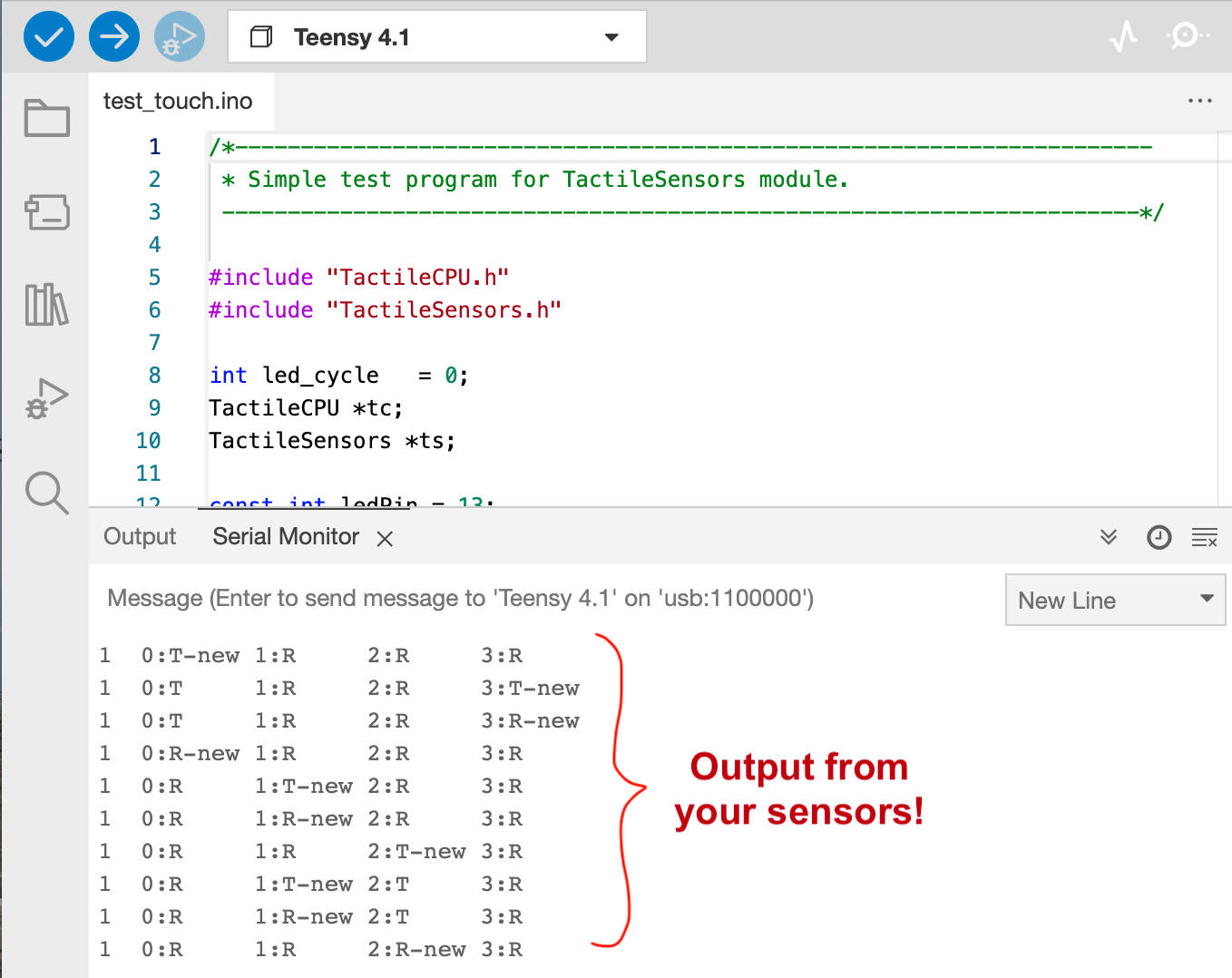
- Firmly touch then release the sensor wires (the blue ones) on your Gemma-M0 microcontrollers. Each time you do, you should see a message in the Serial Monitor, something like this: